![[Guide]How to fully enjoy the scene](https://img5.saketami.com/storage/2/gn/en/9a2cd0-019e8e00-2642-7a3a-8d23-c1ec14161f92.png)
![[Guide]How to fully enjoy the scene](https://img5.saketami.com/storage/1/fs/pu/9a2cd0-019e8e00-2649-787f-8874-4585df4c3fce.png)
![[Guide]How to fully enjoy the scene](https://img10.saketami.com/storage/11/dy/on/9a2cd0-019e8e00-2651-7968-ad87-0fe882be2b43.png)
![[Guide]How to fully enjoy the scene](https://img5.saketami.com/storage/5/st/tp/9a2cd0-019e8e00-2653-7c1c-ab45-4d0f6d9824cd.png)
![[Guide]How to fully enjoy the scene](https://img10.saketami.com/storage/3/en/nb/9a2cd0-019e8e00-265c-7103-9cbd-309da25cd1c8.png)
![[Guide]How to fully enjoy the scene](https://img5.saketami.com/storage/11/sz/yc/9a2cd0-019e8e00-2662-7778-bf30-1a068dc76afe.png)
![[Guide]How to fully enjoy the scene](https://img10.saketami.com/storage/2/wm/ta/9a2cd0-019e8e00-2665-7743-b2b6-c289d9e9ab14.png)
![[Guide]How to fully enjoy the scene](https://img10.saketami.com/storage/10/yw/jm/9a2cd0-019e8e00-2669-7e75-934b-a9ae46891486.png)
![[Guide]How to fully enjoy the scene](https://img10.saketami.com/storage/11/ss/kb/9a2cd0-019e8e00-2673-731f-9474-9814bb0881b4.png)
![[Guide]How to fully enjoy the scene](https://img10.saketami.com/storage/12/tf/xh/9a2cd0-019e8e00-267c-7b2f-b4e9-c80f1e52a973.png)
![[Guide]How to fully enjoy the scene](https://img10.saketami.com/storage/12/bu/yw/9a2cd0-019e8e00-268b-7ce6-b1a2-1f974cc62148.png)
![[Guide]How to fully enjoy the scene](https://img5.saketami.com/storage/10/ru/mv/9a2cd0-019e8e00-2691-73bd-889a-7eb80af0b107.jpg)

Due to recent changes, I thought it would be useful to outline some of the studio features I primarily use to create my scenes.
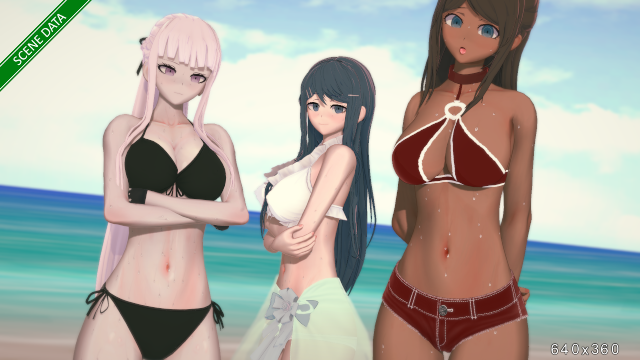
Please refer to this when you want to make a downloaded scene like a screenshot or modify it as you wish.
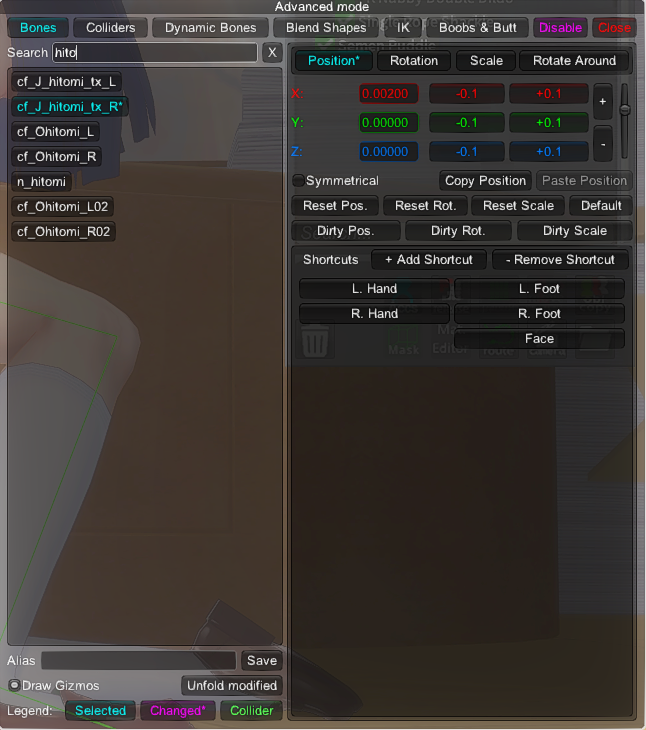
1) KKPE > Advanced mode > search 'hitomi'
-When controlling a character's gaze using the 'gaze' function provided by the studio, there is a limit to the range in which the eyes can move.
Therefore, when I want detailed eye movement, I adjust the 'Position' value of the 'cx_J_hitomi_tx' bone.
Likewise, you can adjust the 'Scale' value to make the iris smaller, but I do it in a different way.
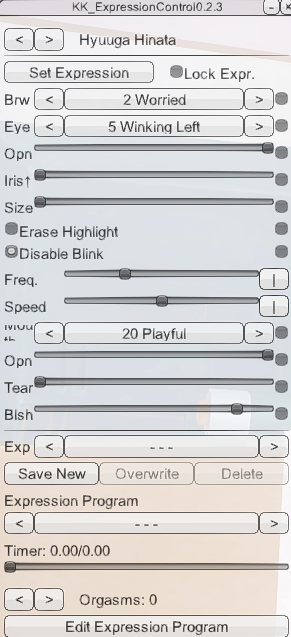
2) KK_ExpressionControl(Plugin)
-This is a plug-in that I use because the facial expression control function provided by the studio is a bit inconvenient. I understand that it is included in the HF patch by default, and is usually operated with the 'L' key.
You can very easily adjust the size of the iris by adjusting the 'Size' bar, and the 'iris↑' bar is mainly used to create an ahegao expression.
However, one inconvenience is that these changes (only for the iris) are reset when the scene is reloaded, so if you feel that it is different from the screenshot when running the scene, it is mainly in this area.
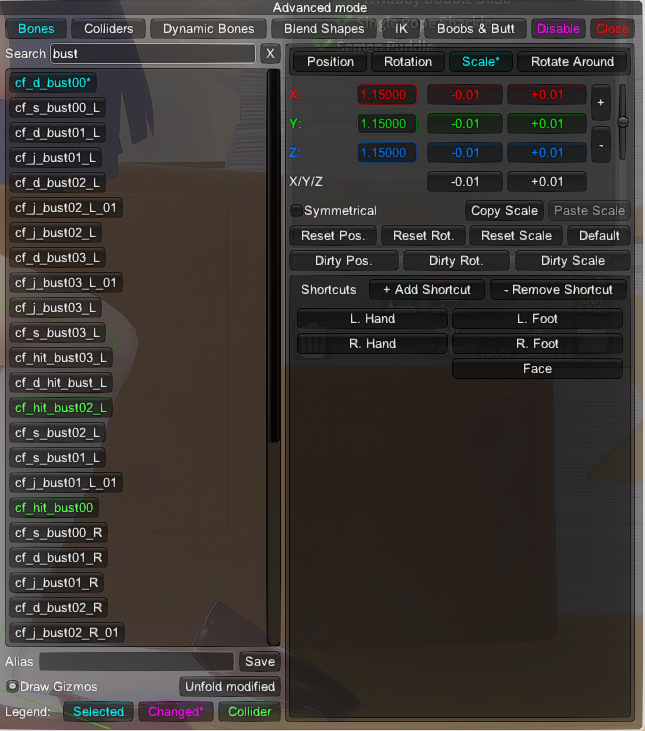
-If you want to adjust the size of the bust within the studio, similarly adjust the scale value of the 'Bust' bone in [KKPE > Advanced mode].
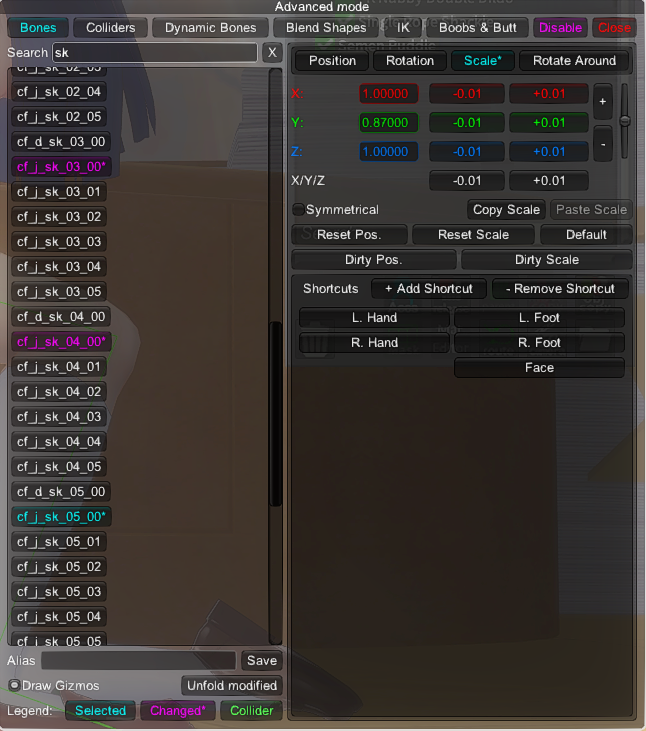
-As expected, it is possible to adjust the y value of the scale in [KKPE > Advanced mode > 'cf_j_sk' bone].
-This is the shader that I mainly use recently. It can be changed in the 'shader' of the 'material editor', and I am very satisfied as it allows for more realistic light expression.
Of course, there is a disadvantage in that it becomes sensitive to light and requires detailed lighting control. Still, if you want, take a look at the really simple instructions.
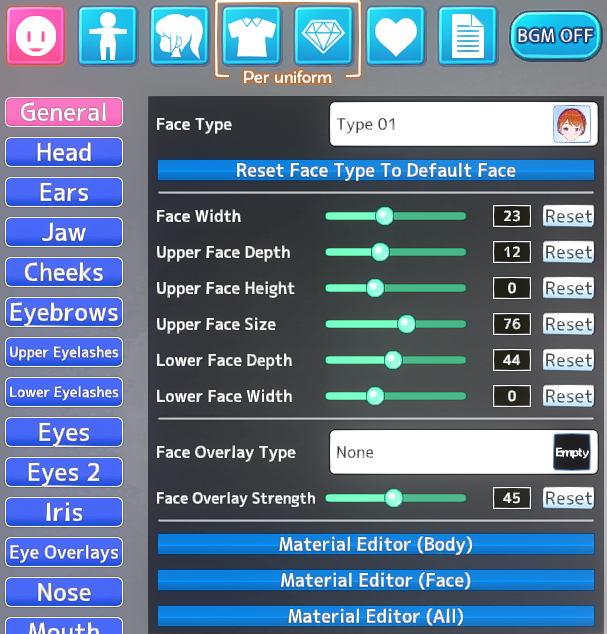
First, go to the ‘Material Editor’ in the character customization window. Work needs to be done on the 'body' and 'face' respectively.
In the material editor(body), change the shader to 'KKUTSitem' and change the values as shown in the picture.
In the same way, enter the material editor (face) and change the values. I made the shadows a little lighter on the face.
This must be done for both the face and body.
Maybe it's the end.
There's a bit more work to do, but you probably won't have any major problems right now.
Once you've done this, just [copy edits > paste edits] for other characters. However, the feel of what you see in the customizing window may be different from what you see in the studio. I recommend making sufficient adjustments.