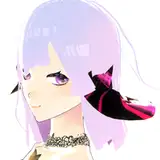
A quick update on the Character editor changes in this weekend's upcoming release:
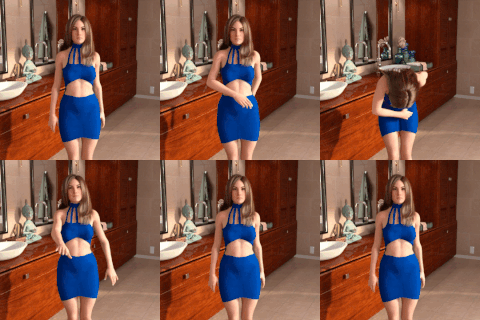
I replaced the last sliders (body type and voice) with drop-down menus. It's done!
Voices are now separated into two default categories: Feminine and Masculine. There are two drop-downs for voices: the first one selects the category, the second one the voice set (see pictures)
An unfortunate consequence of the underlying code changes is that the voices for all characters will be reset with the new version, and you will need to reselect them.
On the upside: this change brings in support for adding in your own custom voice files (Windows only so far). It has also solved a lot of tech debt and made parts of the code easier to maintain and build on.
Adding in your own voice files. How it works:
Voice files are 16-bit, 44,100Kz .wav files that need to be placed inside .mods\audio\voices\CATEGORY_NAME\VOICE_SET_NAME\TOPICS (.mods is inside the game folder)
CATEGORY_NAME is the category name you will find in the Category drop-down in the Voice section of the Character editor. It's there so it makes voice sets easier to find. You can reuse a category (including one of the existing ones: Masculine and Feminine) for multiple voice sets.
VOICE_SET_NAME is the name of the voice set you will be adding, and it shows up under the Voice set drop-down of the Character editor, when you pick the category you've just added.
TOPICS is not one, but multiple folder that define topics that are used in the game. They can, at the time of writing this, be any or all of the following: attack, effort, orgasm, pain
First, create a folder structure matching the instructions above:
create .mods\audio\voices\MyCategory
create .mods\audio\voices\MyFirstVoiceSet
under .mods\audio\voices\MyFirstVoiceSet create the following topic folders: attack, effort, orgasm, pain
put each of your .wav (16-bit, 44,100Kz) files in the topic folder that best matches it. It does not matter what the files are called (keep the extension though). You can use multiple .wav files in each topic - the more the better, as they will be played randomly.
You will need to close and re-open the game for the changes to be reflected in the game (the file structure needs to be read, and that happens only on game start). Now you should have your category available in the Category drop-down in the Voice section of the Character editor. Once you select it, the voice set you created should be there under the Voice set drop-down