Remove Zoom cat filter!
Added 2021-02-13 12:55:44 +0000 UTCIf you haven’t seen the viral video of a lawyer nervously faffing about when he showed up in a Zoom call on national television as a cat, you need to see this.
https://www.youtube.com/watch?v=lGOofzZOyl8&ab_channel=GuardianNews
And, if you’re nervously giggling to yourself while Googling how to remove filters in Zoom so you don’t embarrass yourself like this, here’s a step-by-step:
Removing Zoom filters before a meeting
Prevention is better than cure. And, to make sure you save yourself from turning into a cat, you should check on your Zoom setting right meow.
- On the Zoom desktop client, click your profile picture on the top right corner of the screen and select Settings.
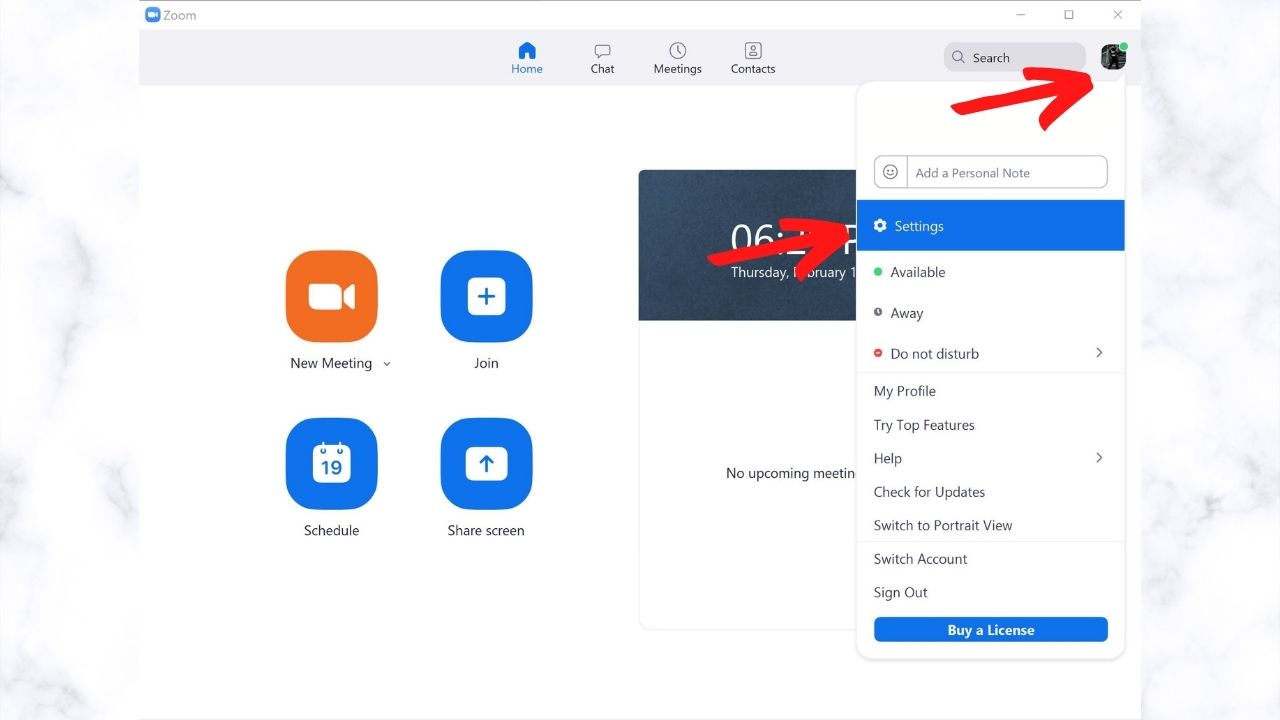
- Click the Background & Filter settings.

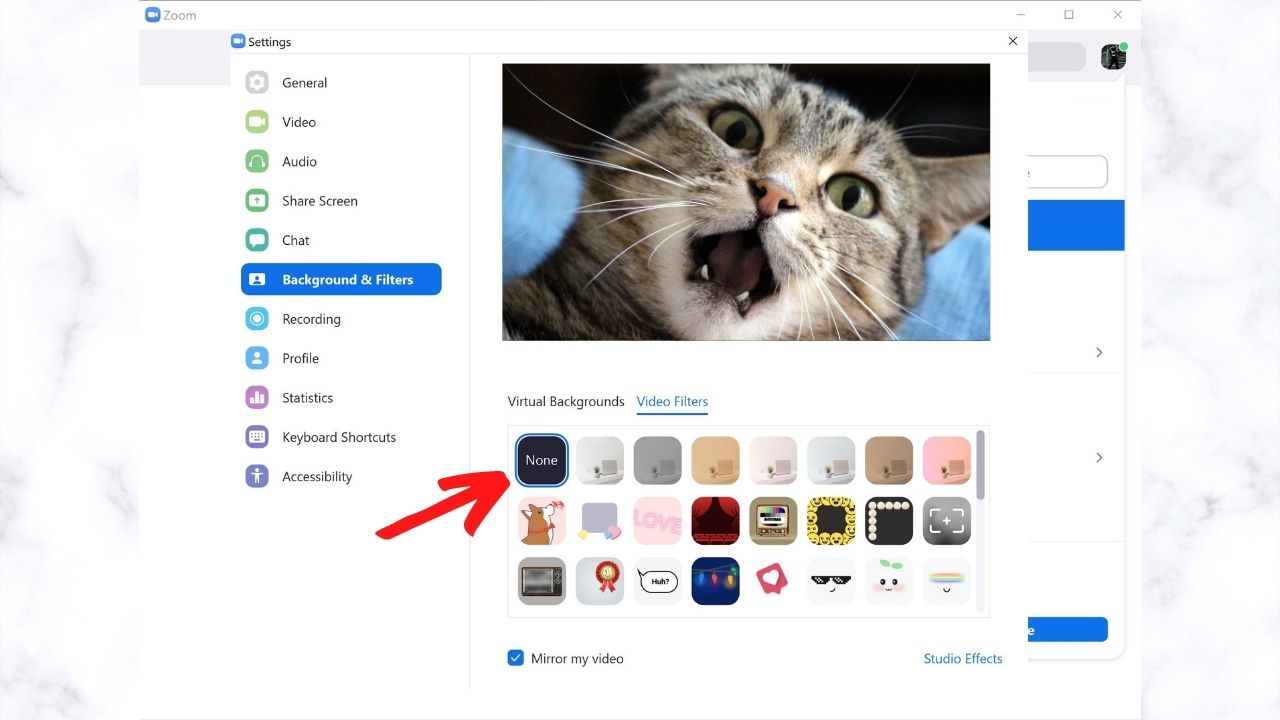
- Check your video preview to see if you have any filters selected or if you have the appropriate virtual background set up for the call.
- If you have a video filter you want to turn off, click the Video Filters

- Select the box labelled None in the top left corner of the filter selections. You may need to scroll up to find it.
Removing Zoom filters in a meeting
This is for when someone is panicking over being in a Zoom meeting with a filter on and you’re trying to change them back to being human.
- In a Zoom meeting, click the up arrow next to your Stop Video icon and select Choose Video Filter to open the Settings window.

- Select the box labelled None in the top left corner of the filter selections.

Removing third-party filters in a meeting
- In a Zoom meeting, click the up arrow next to the Stop Video

- Select the right camera setting, or (if you’re already panicking) frantically select each camera listed until you show up as normal.