3D Gaussian Splatting Guide + Cyberpunk DeLorean Model
Added 2024-10-07 12:57:00 +0000 UTC
To get started with Postshot by Jawset, you can download the software directly from their official site. Postshot is a user-friendly tool designed for creating Neural Radiance Fields (NeRFs) and Splat models, with a range of modes from S to XXL, allowing you to work with both small and large-scale scenes. The software is currently in beta and free to use for commercial purposes during this phase.
Here's a brief guide to get you started with Postshot:
Download and Installation:
Visit the Jawset website and navigate to the Postshot download page.
Download the installer compatible with your operating system (Windows is currently supported).
Follow the on-screen instructions to install the software.
Importing Images and Videos
Postshot supports popular file formats like JPEG, MP4, RAW, and HDR for both images and videos. To import, simply drag your files into the main Postshot window. Once imported, Postshot calculates camera poses and generates a sparse point set, starting the radiance field training process.
You can also use external tools to generate camera poses and points, then import them with the images into Postshot. This skips straight to radiance field training.
Supported Formats:
COLMAP: Requires cameras.bin, images.bin, and points3D.bin (or .txt equivalents).
Bundler: Needs .out (camera parameters) and .ply (sparse points) files.
Reality Capture: Use .csv for camera poses and .ply for sparse points.
Training Configuration
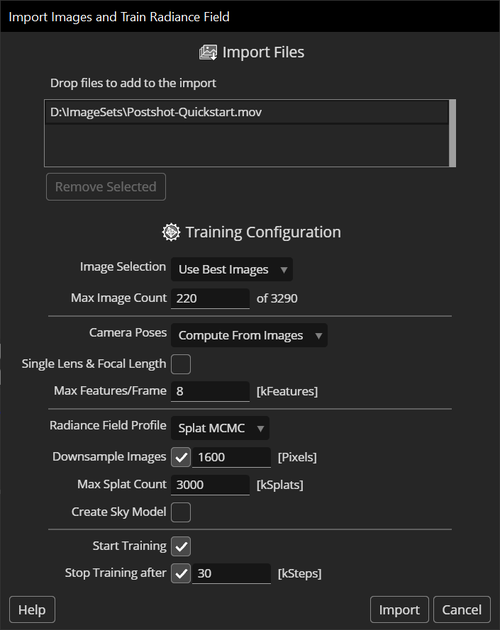
Parameters
Import Files
The import popup window shows the list of files that you are about to import. You can add more files by dragging and dropping them into the popup window.
This allows you to train on multiple video files or multiple folders of images shot of the same scene. You can also add camera poses and point clouds extracted from the same images using external tools. See Importing Images for more details.
Image Selection
Use Best Images: Postshot will select sharp images that are well distributed across the scene for camera tracking and radiance field training. This is a good default to use if you don't want to pre-select images from your capture shot.
Use All Images: All imported images will be used for tracking and training. This setting may cause inferior results to Use Best Images for example if there are blurry images in the import. Using this setting is recommended only if the image sequence has been pre-selected outside of Postshot.
Max Image Count
When using the Use Best Images setting above, the Max Image Count value specifies how many images will be selected from the imported image sequence. Typical values range between 100 and 300.
Image counts below 100 are still possible, but most reasonable results require about 100 or more images.
On the other hand, using many more images won't hurt the quality (assuming all images are sharp and well trackable), but they may not improve it either. Using images that were taken from very similar view points won't give the radiance field enough additional information about the scene to justify the processing time.
Camera Poses
When import images or video, Postshot will compute the camera poses from the images - a process also called Camera Tracking. This is a multi-step process and will take some time before the radiance field training can begin.
If you have already tracked your shot with tools, you can also import the camera poses. To do this, simply drop both the images and the camera pose database into Postshot.
Single Lens & Focal Length
If you know that all of the imported images or videos were shot with the same lens and focal length setting, checking this option may create more stable camera poses, which ultimately also improves the accuracy of the trained radiance fields.
Max Features/Frame
This value controls the maximum number of feature points that will be extracted for one frame during Camera Tracking. The more features are extracted, the more 3D points will be generated. This can help improve the accuracy of the camera poses and when using the Splat profile also the quality of the radiance field.
However, higher numbers may cause the tracking process to take longer. Low numbers, like 4 kFeatures or less, may cause the tracking to fail.
Radiance Field Profile
Postshot supports two different models to create radiance fields: Gaussian Splatting (Splat) and Neural Radiance Fields (NeRF).
Splat MCMC
Both Splat profiles allow for very fast rendering and quickly reconstruct fine detail in well-covered regions of the scene.
The Splat MCMC profile is currently the recommended profile for most scenes. It allows limiting the number of Splat primitives (see Max Splat Count) and thereby the amount of memory and disk space the resulting model requires.
Splat ADC
The Splat ADC profile is very similar to the Splat MCMC profile, but differs in the way it produces detail in the scene during training. You can control the amount of detail it creates during training through the Splat Density parameter.
NeRF models
When using the NeRF model, the maximum accuracy has to be specified before the training can begin. Postshot currently provides five sizes (S, M, L, XL, XXL) for NeRF models. NeRFs are much slower to render than Splats.
Here is an intuition for how 'large' the NeRF profile options are:
S is for toy-like testing.
M is a significant step up, such that real scenes can be reasonably captured with low memory requirements.
L is the recommended default if you want to produce good image quality.
XL and XXL are for pushing toward fine detail in the scene center or for large scenes.
Downsample Images
To reduce the training time, Postshot can use downscaled images. If enabled, this value specifies the maximum size of the larger dimension of an image. For example, if set to 1920, images of size 3840x2160 will be downscaled to 1920x1080.
Downscaling images may also reduce detail in the trained model. However, it depends on the detail that is actually visible in the images and by how much the images are downscaled.
Max Splat Count (only in Splat MCMC profile)
This specifies the number of Splat primitives that training will at most create in the scene. This directly affects how much memory and disk space the radiance field model requires as well as how much fine detail can be represented.
If there is not enough detail in your splat model, you can increase this value during training or continue training with a different value after it has been paused.
Create Sky Model
Since the sky in outdoor shots usually does not have much texture that guides the reconstruction process, it can result in large floating artefacts that tend to 'hang' much lower than the sky should. Postshot can create a special sky model that helps to reduce such artefacts by projecting the environment onto a large sphere around the scene.
Splat Density (only in Splat ADC profile)
When using the Splat ADC profile, this value controls how much detail will be created in the scene. Values larger than 1.0 cause it to be more sensitive, adding splats already for smaller inaccuracies. Values less than 1.0 make it less sensitive, causing fewer splats to be created.
If there is not enough detail in your splat model, you can try increasing this value. You can change this value during training or continue training with a different value after it has been paused.
Sampling Mode (only in NeRF profiles)
After the NeRF model size, the Sampling Mode is the next important settings that affects the quality of the radiance field. The options differ in quality and compute cost:
Fast produces the lowest quality, which usually means blurrier images. But it is the fastest.
Focused clusters samples close to surfaces in the scene, thereby allowing for improved definition.
Multisampled further improves reconstruction of fine and/or distant structures at an increased compute cost.
Refine Camera Poses (only in NeRF profiles)
The camera poses create by the Camera Tracking process can be of varying accuracy. Especially if they have been generated by real-time tracking methods and then been imported into Postshot.
If the camera poses have low accuracy, the radiance field quality will suffer significantly. If this option is enabled, Postshot will improve the accuracy of the camera poses while training the radiance field. This can save a shot entirely if the poses were poor. On the other hand, if the shot was tracked well, it may not improve anything. In this case it will be somewhat faster to train without pose refinement.
Start Training
Leave this box checked to automatically start tracking and training after importing the images.
Stop Training After
If checked, Postshot will stop training after the specified number of steps. 30 kSteps is a good starting point for many scenes. When using NeRF L or larger models and pushing for fine detail or large scenes, more than 30 kSteps will likely be necessary. While most of the convergence occurs during early training steps, there can still be significant improvements in image quality after twice that amount or more.
Here is our 3D gaussian splat of a futuristic DeLorean car created from screen recording Cyberpunk 2077. To open, use Postshot.