Hello Black Mixture Fam! 👋
We're excited to unveil our latest custom ComfyUI workflow: V3! We know it might look a little overwhelming at first glance, but don’t worry – we’re here to make it simple, step-by-step. This guide will give you an overview and some helpful hints so you can jump right in.
Step 1. "Pick Your Add-Ons" = You’ll find add-ons with emojis that highlight the key ones to keep enabled. (Pro-tip: The “face detailer” and “detail daemon” add-ons are great for enhancing image quality!) Skip options you’re unfamiliar with; the defaults work great for most needs.
Understanding the Add-Ons:
The add-ons are powerful features that can enhance your workflow results. Let’s go through each one to help you decide which add-ons to enable and why.
Enable Upscale 🔍
This add-on allows you to improve the resolution of your final image, making it sharper and more detailed. Upscaling is especially useful if you want high-quality output suitable for larger displays or print. For most users, it’s a good idea to keep this option enabled to get the best visual fidelity.Enable Face Detailer 😊
If your image contains human faces, this add-on helps refine facial features, making them more realistic and polished. This can be a lifesaver for portrait-focused images, enhancing clarity and subtle facial details. We recommend enabling Face Detailer if you’re working on any image where the face is an essential element.Enable Canny ControlNet 🚫
Canny ControlNet helps add fine line details by using edge detection, but it’s only necessary if you specifically need detailed outlines in your images. If you’re not familiar with ControlNet or if the lines are too prominent for your liking, you can leave this turned off for now. This is more for advanced users who want to play with line-based adjustments.Enable Depth ControlNet 🚫
This add-on adds depth to your image by simulating a 3D effect, making objects in the background appear further away. If you want to create more dimensionality in your compositions, try turning this on. Similar to Canny ControlNet, this is more beneficial for advanced users experimenting with spatial depth.
Make sure you have the Flux Depth ControlNet and Flux Canny ControlNet placed in your "ComfyUI/models/xlabs/controlnets" folder.
If the "xlabs/controlnets" folders do not exist you can create them and place the files there.
Here are links to the ControlNet files.
Flux Depth ControlNet: https://huggingface.co/XLabs-AI/flux-controlnet-collections/blob/main/flux-depth-controlnet-v3.safetensors
Flux Canny ControlNet: https://huggingface.co/XLabs-AI/flux-controlnet-collections/blob/main/flux-canny-controlnet_v2.safetensorsEnable LoRAs 📚
LoRAs (Low-Rank Adaptation models) are custom-trained models that can change the look and style of your images. For example, if you have a specific style LoRA loaded (like Studio Ghibli), it will influence the overall style of your output. Keep this enabled if you want to apply a specific stylistic model to your work. For those without LoRAs, it’s safe to leave it disabled.Enable Prompt Replace 🔄
This is a handy feature for customizing your prompt inputs. It lets you quickly swap certain words or phrases in your prompt based on pre-set keywords. For instance, if you use “color1” in the prompt, this add-on can replace it with any color you’ve assigned. This is great for testing different color themes or keywords without changing the entire prompt manually each time.Enable Detail Daemon 🔥
The Detail Daemon enhances finer details across your image, making it richer and more dynamic. It’s one of our favorite add-ons for giving that final touch of quality to images, so we recommend keeping this on by default. In our experience, it improves output quality in about 99% of cases.Enable IMAGE DIMENSIONS 📏
This add-on lets you specify custom dimensions for your images. It’s especially useful if you need to create images in a specific format or size for a project. By enabling it, you’ll have more control over your final image’s resolution and proportions.Enable MASK OPTIONS 🎭
Mask Options give you the flexibility to apply masks to certain areas of your image. For example, you could use a mask to selectively enhance one part of the image without affecting the rest which is useful for face swaps and img to img generations. If you’re working with complex compositions and want to focus edits on specific regions, turn this on.
Each of these add-ons can be enabled or disabled depending on your needs. Start with the ones we’ve highlighted as beneficial for general use, and feel free to explore the others as you grow more comfortable with the workflow!
LOADING YOUR IMAGE & PROMPT SETUP
Once you have your base image and checkpoint, load your LoRA models if desired. Don’t worry if you don’t have any; just turn them off to use the base model. By default, there are 3 that operate on the toggle switch from the add-on picker, but you can also disable individual LoRA loaders by "left-clicking" on them and then pressing "ctrl + b". We’ve even included a prompt replace feature where you can swap in custom colors or titles, making your prompts adaptable on the fly!
PROMPTING, CONTROL NETS & ENCODING
In Step 2, set your main prompts, like lighting or tags, for extra flair. Turn on ControlNets to apply effects like canny or depth if you have these models installed. Play around with encoder options for unique results – we’ve found that adjusting these can really change the look and feel. Our preferred values are between 0.30 - 0.80 before the image becomes unusable.
LATENTS & SAMPLING
The “latents” section gives you options for how you want the image to evolve. For example, you can load a mask for specific character detection. This section also has some sampling settings to help fine-tune the final look, particularly with denoising, which is essential if you’re working image-to-image.
SAVING & UPSCALING
Compare your output image with the original using the image compare node. From there, choose your preferred upscale model and enhance details, like facial features. At the bottom of each panel, we’ve included all the nerdy stuff for fine-tuning if you’re into optimizing every setting.
ORGANIZATION & COLOR CODING
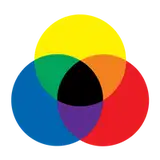
Keep things tidy with our color-coded panels, and download our exclusive Black Mixture spectrum for seamless organization. Your workflow will look as polished as your projects!
Your support on Patreon is what lets us build and share resources like this. We hope you love this workflow, and we’re excited to see what you create with it. Let us know if you have questions, and happy creating!
Stay Inspired,
Nate Dwarika
The Black Mixture Team
Black Mixture
2024-12-30 19:47:48 +0000 UTCZoltán István Bíró
2024-12-30 16:10:41 +0000 UTCRelatos para escuchar
2024-11-11 02:14:17 +0000 UTCBlack Mixture
2024-11-10 22:04:41 +0000 UTCBlack Mixture
2024-11-10 21:48:14 +0000 UTCRelatos para escuchar
2024-11-10 16:57:01 +0000 UTCRelatos para escuchar
2024-11-10 16:54:36 +0000 UTC