Black Mixture Ultimate Flux ControlNet + Upscale Workflow (v1.5)
Here's our latest ComfyUI workflow, designed for ultimate image creation and upscaling with powerful Flux ControlNet integration. This setup offers both creativity and precision in a streamlined, beginner-friendly interface, perfect for intermediate users looking to generate high-quality imagery.
Multiple ControlNet Models: Incorporates Canny Edge and Depth to guide the image creation process with refined control.
Dynamic LORA Support: Easily add pre-trained LORAs for character generation and styling.
Comprehensive Upscaling: Built-in ESRGAN_4x upscaling for crystal-clear, high-resolution outputs.
Simplified Interface: Organized, color-coded nodes for easy navigation and understanding—no visible wires to clutter the workspace.
Prompt Customization: Modular node setup for prompt generation and saving, ensuring flexibility and detailed control over scenes.

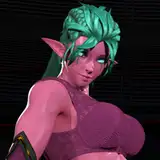
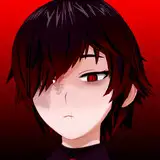
Made with Black Mixture's Ultimate Flux + ControlNet + Upscale Workflow V1.5 ⤵

 Load Your Image:
Start by loading an image in the Load Image section. This can be a pre-existing photo or a reference you want to base your generation on.
Set Your LORAs:
Use the Lora Loader section to add specific LORA models (like ‘realism.safetensors’ or other custom-trained LORAs) to define character appearance or style.
Prompt & Composition:
Fill out the Prompt section with a detailed description of your scene or subject. For example, “A vector illustration of Nate and Chriselle wearing leather jackets.” Be sure to input specific keywords related to the composition. The Prompt Replace section allows you to easily replace the keywords color1, color2, and #title1 for easier generation. The Save Prompt section allows is a storage area for copying and pasting prompts you like.
Configure ControlNet Settings:
Move to the ControlNet section and adjust the ControlNet models you want to use (e.g., Canny Edge or Depth).
Apply the Canny Edge model to emphasize the outlines and control depth for dimension. Use the preview area to review how the ControlNet is affecting the base image.
Generate and Compare:
Once you’ve set up your prompts and ControlNet models, preview the generation and compare it to the original image before the final upscale.
Upscaling:
After the initial generation, the image will automatically head to the Upscale Section and apply the ESRGAN_4x model to bring your image up to high-resolution standards. You can bypass this by clicking the switch at the top right of the node group or right clicking on the Upscale Bypass group label and selecting to bypass.
Save and Export:
Use the Image Save section to export your final high-resolution image. Options are available to export in different formats or qualities depending on your output requirements.
Extras (Latent Size Selection & Image Dimensions):
By default this workflow will pick the best image dimensions for generation based on the input image; however, for advanced users, you can select your latent size using the selector located at the bottom of the workflow.
We’ve designed this workflow to combine ease of use with powerful customization and analysis tools. You can achieve incredible image quality with fine-tuned control, whether you're working with character design, digital illustration, or detailed portraiture. This workflow will simplify the process while giving you full control over the details.
Let us know how this new setup works for you and what creative projects you bring to life with it!
If you're missing nodes, make sure you have ComfyUI manager and click install missing nodes.
If you're missing models, use the model installer in the ComfyUI manager to get the models.
Make sure you have the Flux Depth ControlNet and Flux Canny ControlNet placed in your "ComfyUI/models/xlabs/controlnets" folder.
If the "xlabs/controlnets" folders do not exist you can create them and place the files there.
Here are links to the ControlNet files.
Flux Depth ControlNet: https://huggingface.co/XLabs-AI/flux-controlnet-collections/blob/main/flux-depth-controlnet-v3.safetensors
Flux Canny ControlNet: https://huggingface.co/XLabs-AI/flux-controlnet-collections/blob/main/flux-canny-controlnet_v2.safetensors
*Update│October, 2024*
We've since updated this workflow to use a different ControlNet (produces images faster).
Black Mixture V2 Ultimate Flux ComfyUI Workflow: https://www.patreon.com/posts/ultimate-flux-v2-112726573
*Update│November, 2024*
Added a "Pick Your Add-Ons" Section, regional prompting version, face detailer, UI improvements, and mask options.
🔥(LATEST) Black Mixture V3 Ultimate Flux ComfyUI Workflow
Download on Patreon: https://www.patreon.com/posts/black-mixture-v3-115708810